Browser extension
Your CRM and inbox, next to every tab
Open your CRMsoftware.pro inbox, chats and tasks in the browser side panel. Save leads from Gmail and LinkedIn in one click and draft AI replies without switching tabs.
- Free plan
- No credit card
- Reads a page only when you click
- 1 clickto save a Gmail sender or LinkedIn profile
- 6workspaces in the side panel
- 0pages read in the background
- $0to start on the Free plan
Side panel
Your whole workspace in the side panel
Inbox, Chats, Email, Tasks, Contacts and AI open next to the page you are on, signed in with your normal CRMsoftware.pro account. Answer a customer, check a task or look up a contact without leaving the tab.
- Team, Telegram and WhatsApp chats in one list
- Opens with Alt+Shift+C
- In Edge it can also sit in the Edge sidebar
 Side panelAlt+Shift+C
- InboxEvery customer conversation from chat, email and messengers in one queue.
- ChatsTeam chat plus your linked Telegram and WhatsApp conversations.
- EmailYour connected mailbox with threads, labels and scheduled sends.
- TasksProjects and tasks with owners, priorities and deadlines.
- ContactsCRM contacts and leads, including the ones you just saved.
- AIThe AI assistant for drafts and summaries, after you allow AI data sharing.
Gmail
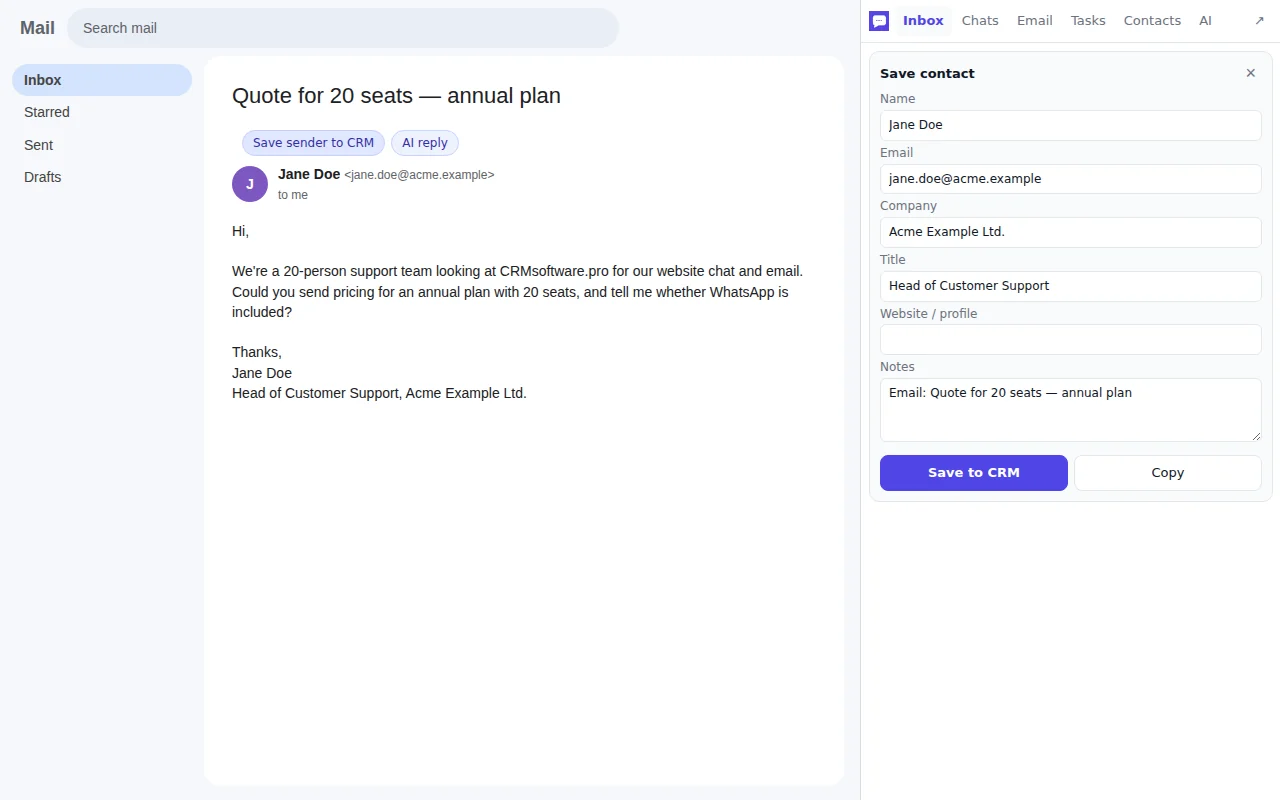
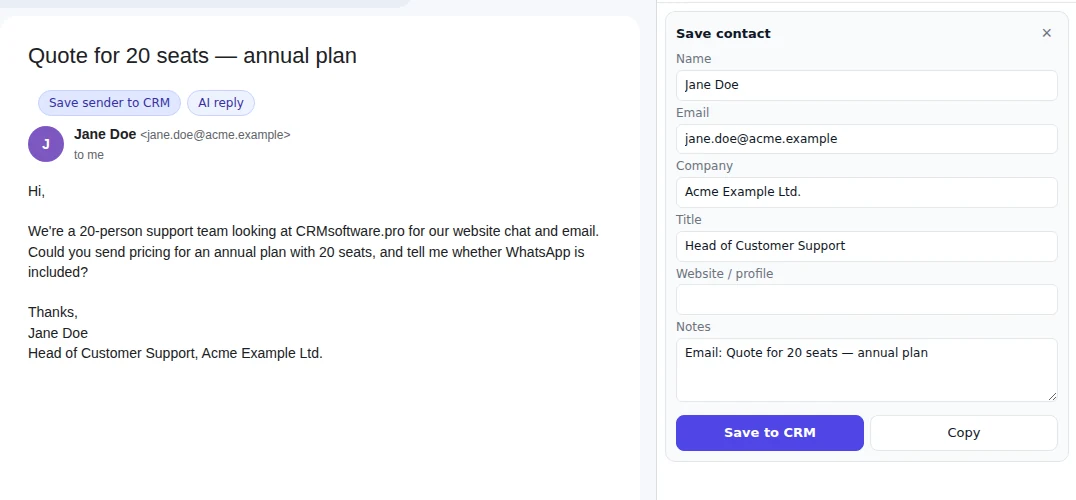
Save the sender to your CRM from any email
Open an email in Gmail and click "Save sender to CRM". The side panel shows a contact card with the name, email and subject already filled in. Add the company or a note, then save.
- Review every field before it is saved
- Works with Gmail and Google Workspace
Turn a LinkedIn profile into a lead
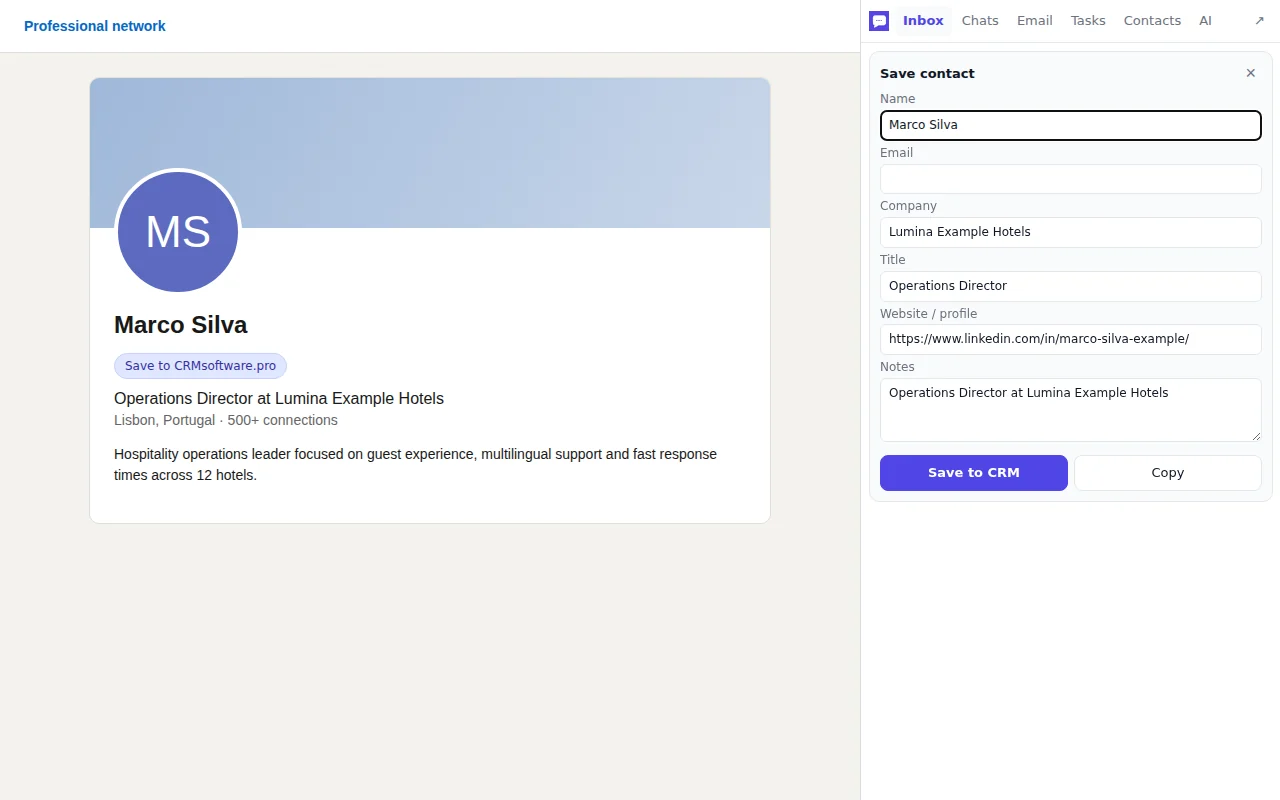
On any LinkedIn profile, click "Save to CRMsoftware.pro". Name, headline, company and profile link go into a contact card you can check and save in seconds.
- Company taken from the headline when needed
- Right-click any page or selected text to save it too
AI replies
Draft a reply with AI, send it yourself
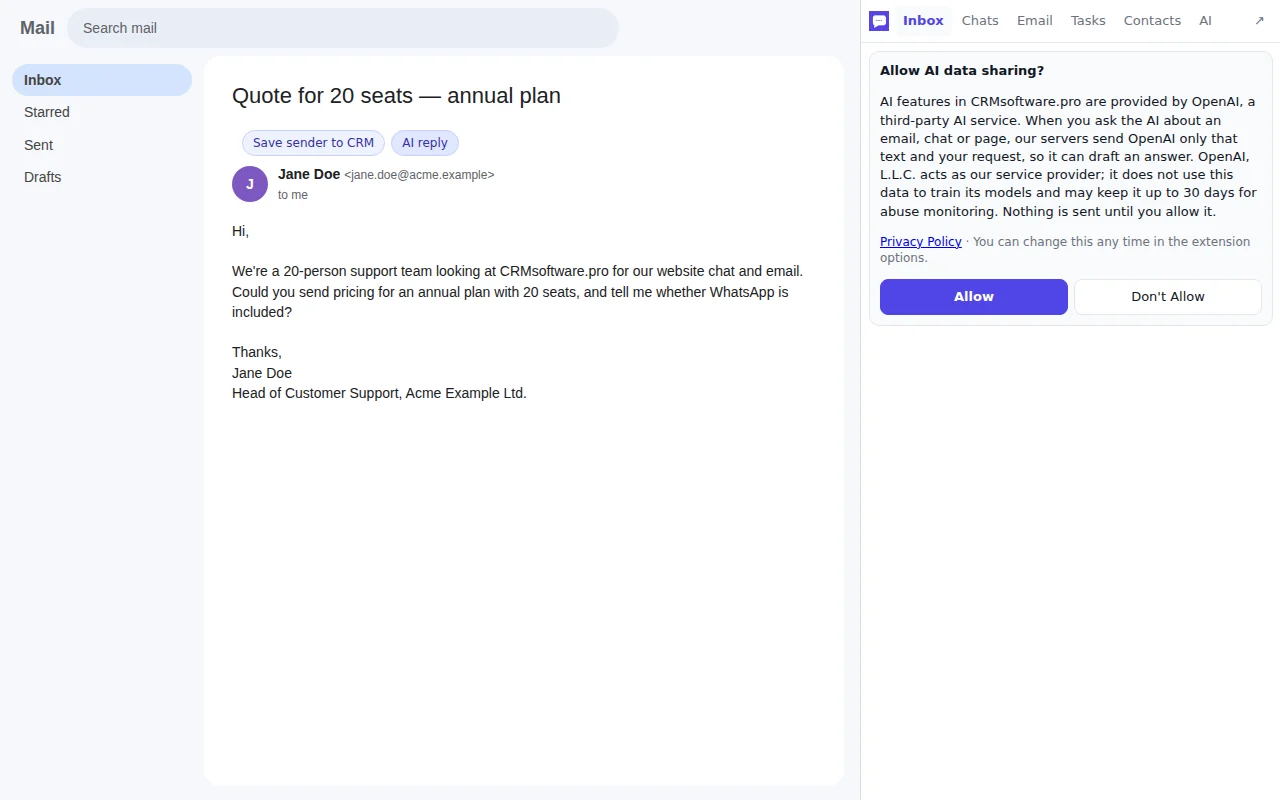
Click "AI reply" in Gmail or right-click selected text to get a draft from CRMsoftware.pro AI. You always read, edit and send it yourself. AI stays off until you allow it.
- Asks for consent before anything goes to the AI provider
- Change your choice at any time
Side panel
What is in the side panel
The same workspace as app.crmsoftware.pro, sized for a narrow panel.
Inbox
Every customer conversation from chat, email and messengers in one queue.
Chats
Team chat plus your linked Telegram and WhatsApp conversations.
Your connected mailbox with threads, labels and scheduled sends.
Tasks
Projects and tasks with owners, priorities and deadlines.
Contacts
CRM contacts and leads, including the ones you just saved.
AI
The AI assistant for drafts and summaries, after you allow AI data sharing.
Private by design
The extension only does something when you click it.
Reads a page only on click
It never reads pages in the background. Gmail and LinkedIn buttons and the right-click menu are the only triggers.
Data stays in your workspace
Contact details and email text go straight to your CRMsoftware.pro workspace. They are never put into links or sent anywhere else.
No ads, no tracking
No analytics, no ad networks. AI features are provided by OpenAI and stay off until you allow them.
Get started in a minute
Install
Add the extension from your browser's store. The button above picks the right store for you.
Sign in
Click the toolbar icon to open the side panel and sign in, or create a free account.
Save your first lead
Open an email in Gmail or a LinkedIn profile and click the save button.
Available for your browser
One extension for Chromium browsers, with Firefox and Safari versions on the way.
Questions
Is the extension free?
Yes. The extension is free, and you can use it with the Free CRMsoftware.pro plan. Paid plans add more users, AI messages and bots.
Which browsers does it work in?
Chrome, Microsoft Edge, Brave, Vivaldi, Arc and Opera. Opera can install it from the Chrome Web Store. Firefox and Safari versions are in store review.
Do I need a CRMsoftware.pro account?
Yes. The side panel uses your normal sign-in. You can create a free account from the panel in under a minute.
Does it read my emails?
Only the email you have open, and only when you click "Save sender to CRM" or "AI reply". It never scans your inbox or reads pages in the background.
Where does saved data go?
Straight to your CRMsoftware.pro workspace, the same place as contacts you add in the web app. Nothing is sent to other services.
How does the AI reply work?
The email or text you select is sent to CRMsoftware.pro AI, provided by OpenAI, to write a draft. This only happens after you allow AI data sharing, and you review and send the reply yourself.
Is there a mobile app?
Yes. CRMsoftware.pro is coming to the App Store and Google Play with the same workspace on your phone.
Bring your CRM into the browser
Install the free extension and save your first lead today.